

Download 3D Visioner 2013 – 3D Modeling Add‑in for Microsoft Visio
Overview
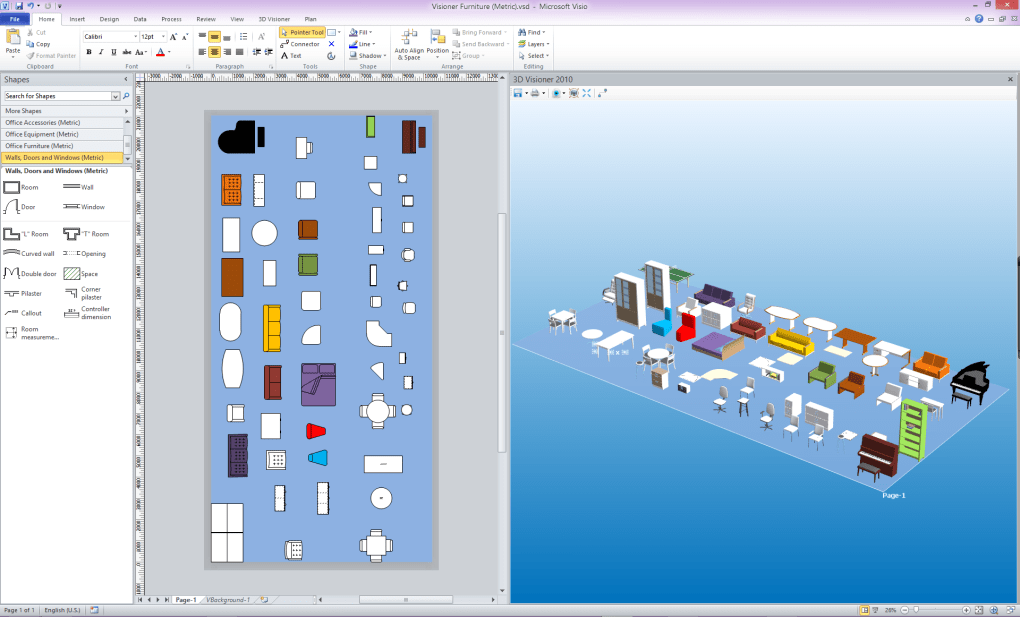
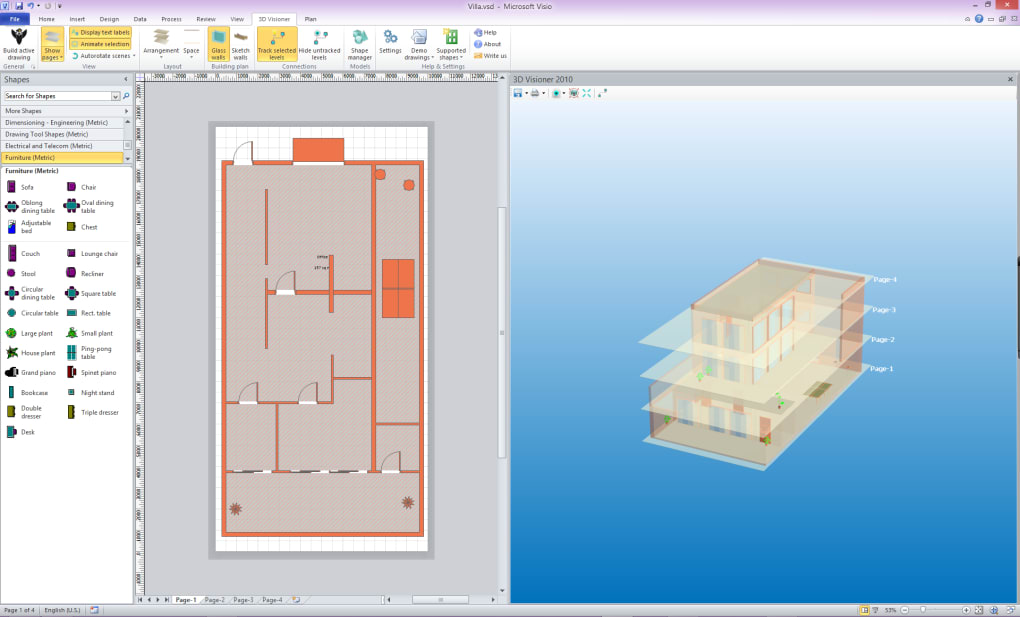
3D Visioner 2013 is a powerful plug‑in that brings true three‑dimensional visualization directly into Microsoft Visio. Designed for engineers, designers, and anyone who creates complex diagrams, the add‑in lets you convert flat Visio pages into an interactive 3D scene with a single click. Whether you are mapping a power‑plant network, drafting a facility layout, or sketching a flowchart for a software system, the ability to rotate, pan, and zoom through a full‑scale 3D model dramatically improves spatial awareness and reduces the time spent deciphering tangled link directions.
The synchronization between Visio and the 3D view is seamless: any change you make on a Visio page—adding a shape, editing a connector, or updating a hyperlink—is instantly reflected in the 3D window, and selecting an object in the 3D scene automatically highlights its source shape in Visio. This bi‑directional link eliminates the guesswork that often plagues large diagram projects. Moreover, 3D Visioner respects the familiar Visio “anchor window” paradigm, so you can dock multiple 3D views alongside your traditional drawing panes, creating a workspace that feels native rather than tacked‑on.
The plug‑in does not require any CAD background; it runs out of the box with Visio 2010, 2013, and later versions, making advanced 3D visualization accessible to small entrepreneurs, network engineers, and students alike. By turning a 2‑D diagram into a navigable 3‑D environment, 3D Visioner 2013 boosts productivity, improves communication with stakeholders, and helps you catch design errors before they become costly rework.
Key Features
- One‑Click Extrusion: Transform any Visio page into a 3‑D scene instantly, preserving shapes, connectors, and hyperlinks.
- Live Synchronization: Edits in Visio are mirrored in real time to the 3‑D view; selections in 3‑D highlight the original Visio shape.
- Multiple 3‑D Windows: Open as many 3‑D windows as needed per project, each dockable as a Visio anchor window.
- Intuitive Navigation: Rotate, pan, and zoom through complex diagrams to inspect link directions and spatial relationships.
- Hyperlink Visualization: Clickable 3‑D objects retain their original Visio hyperlink functionality, enabling rapid access to related documentation.
- Cross‑Page Integration: All pages of a Visio document are combined into a single 3‑D scene, providing a holistic view of multi‑page projects.
- Low Learning Curve: No CAD expertise required; the interface mirrors Visio’s familiar toolset.
- Compatibility Layer: Works with Visio 2010‑2022 on Windows 7, 8, 10, and 11, and supports both 32‑bit and 64‑bit environments.
- Performance Optimized: Utilizes hardware acceleration where available to render large models smoothly.
These features collectively address the most common pain points faced by Visio power users. For instance, the ability to view the entire project in a single 3‑D scene eliminates the need to toggle between dozens of pages just to understand how a network of pipes or cables interconnects. The live synchronization ensures that the 3‑D representation never becomes outdated, which is a frequent problem when teams rely on static screenshots or exported images. Additionally, because the plug‑in integrates directly into Visio’s ribbon, you can launch 3‑D mode without leaving your familiar workflow, keeping the learning curve shallow and adoption fast.
Installation & Usage Instructions
Step‑by‑Step Installation
- Download the installer from the official 3D Visioner website. The file is a signed
.exefor Windows, ensuring a secure and tamper‑free download. - Run the installer with administrative privileges. The wizard will detect your installed version of Microsoft Visio and configure the add‑in accordingly.
- Accept the license agreement, choose the installation folder (default is
C:\Program Files\3D Visioner), and click Install. The process typically takes under two minutes. - When installation completes, launch Microsoft Visio. You will see a new “3D Visioner” tab on the ribbon, indicating that the plug‑in has been loaded successfully.
- Optionally, restart Visio to ensure all COM components are registered correctly.
Getting Started with Your First 3‑D Model
1. Open an existing Visio diagram or create a new one. Populate it with shapes, connectors, and any hyperlinks you need.
2. Navigate to the 3D Visioner tab and click the Extrude to 3‑D button. In seconds, a new 3‑D window appears, displaying your entire drawing as a three‑dimensional scene.
3. Use the mouse or trackpad to rotate the view: left‑drag rotates, right‑drag pans, and scroll wheel zooms. 4.
Click any 3‑D object to highlight its source shape on the original Visio page; this two‑way selection makes it easy to locate and edit specific elements. 5. If you need to adjust the model, return to the Visio canvas, modify shapes or connectors, and watch the 3‑D window update instantly—no manual refresh required.
6. For large projects, open additional 3‑D windows from the New 3‑D View command, dock them alongside your drawing panes, and compare different perspectives side by side. 7.
When you’re ready to share the model, export a high‑resolution screenshot or use the built‑in “Save as 3‑D File” option to generate a portable .obj that can be opened in other 3‑D viewers.
The workflow is deliberately streamlined: after the initial installation, the only extra step you perform is clicking the Extrude button. All other actions—synchronization, navigation, and selection—are handled automatically, allowing you to focus on design rather than technical setup. The plug‑in also includes a preferences dialog where you can tweak rendering quality, enable hardware acceleration, or set default camera angles, giving you fine‑grained control without overwhelming the casual user.
Compatibility, Pros & Cons, FAQ, and Final Thoughts
System Compatibility
3D Visioner 2013 is built for Windows environments that run Microsoft Visio 2010 through Visio 2022. It supports both 32‑bit and 64‑bit versions of Visio and has been tested on Windows 7, 8, 10, and 11. The plug‑in requires .NET Framework 4.6 or later and a graphics card that supports DirectX 11 for optimal performance, though it will still operate on systems with basic integrated graphics—albeit with reduced rendering speed for very large models.
Pros and Cons
- Pros
- Instant 3‑D extrusion with a single click.
- Live, bidirectional synchronization between Visio and 3‑D view.
- No CAD expertise required; works directly inside Visio.
- Multiple dockable 3‑D windows for complex projects.
- Preserves hyperlinks and shape metadata in 3‑D.
- Hardware‑accelerated rendering for smooth navigation.
- Compatible with a wide range of Visio versions and Windows OS releases.
- Cons
- Only available for Windows; no native Mac, Android, or iOS version.
- Requires a licensed copy of Microsoft Visio; not a standalone 3‑D modeling tool.
- Large diagrams may experience slight lag on older graphics cards.
- No built‑in advanced 3‑D editing (e.g., sculpting) beyond extrusion.
Frequently Asked Questions
Do I need a special version of Visio to use 3D Visioner?
No. 3D Visioner works with Visio 2010, 2013, 2016, 2019, and 2022, both 32‑bit and 64‑bit editions. As long as you have a licensed copy of Visio installed, the plug‑in will integrate automatically.
Can I export the 3‑D model to use in other 3‑D software?
Yes. The add‑in includes a “Save as 3‑D File” option that exports the current scene as an OBJ file, which can be imported into most 3‑D viewers and CAD programs.
Is there a free trial or a free version available?
A 30‑day fully functional trial is available from the official website. After the trial period, you can purchase a perpetual license; there is no permanently free version.
How does 3D Visioner handle hyperlinks embedded in Visio shapes?
Hyperlinks are preserved in the 3‑D view. Clicking a 3‑D object with an attached hyperlink will open the linked document or URL exactly as it would from the original Visio shape.
Will my existing Visio macros or add‑ins interfere with 3D Visioner?
In most cases, 3D Visioner coexists peacefully with other Visio add‑ins. However, if a macro directly manipulates the Visio object model during a 3‑D session, you might experience temporary sync delays. It’s recommended to disable heavy‑weight macros while using the 3‑D view.
Conclusion & Call to Action
3D Visioner 2013 fills a niche that many Visio users didn’t even know they needed: a fast, reliable way to see their diagrams in three dimensions without leaving the familiar Visio environment. By turning static flowcharts, network maps, and facility layouts into interactive 3‑D scenes, the plug‑in not only enhances visual comprehension but also streamlines the design review process, cutting down on miscommunication and costly revisions. The seamless synchronization, intuitive navigation, and low learning curve make it an ideal tool for small businesses, engineering firms, and even academic settings where budgets for full‑blown CAD suites are limited. While it is Windows‑only and requires a Visio license, the value it adds to any Visio‑centric workflow outweighs these constraints for most professional users. If you’re ready to elevate your diagrams from flat drawings to immersive models, download the 30‑day trial of 3D Visioner 2013 today and experience the power of three‑dimensional thinking.
Pros: Instant extrusion, live sync, multiple 3‑D windows, preserves hyperlinks, works with all recent Visio versions.
Cons: Windows‑only, no advanced 3‑D editing, performance depends on graphics hardware.







